
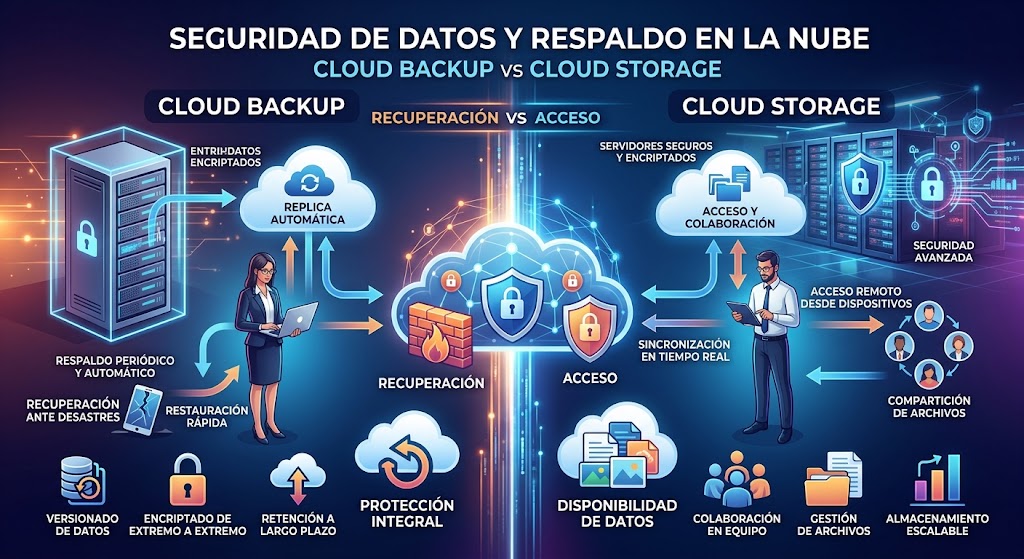
Cloud backup and cloud storage both help you keep files online, but they solve different problems. Cloud storage makes it easier to access, share and synchronize documents across devices. Cloud backup creates recoverable copies of your data so you can restore files after accidental deletion, hardware failure, ransomware or other incidents.
Understanding the difference can help you protect important documents, reduce the risk of data loss and avoid paying for a service that does not meet your needs.
Compare the differencesWhether you are a home user, freelancer, small business owner or IT manager, the right solution depends on how you work with files and how quickly you need to recover them if something goes wrong. In many situations, the best approach is to use cloud storage and cloud backup together.
Cloud Backup vs Cloud Storage: Key Differences
| Feature | Cloud Storage | Cloud Backup |
|---|---|---|
| Main purpose | Access, synchronize and share files | Protect data and enable recovery |
| Typical use | Documents, photos, shared folders and projects | Copies of computers, folders, databases or business data |
| Synchronization | Usually a central feature | May run automatically on a schedule or continuously |
| Deleted file protection | May provide a recycle bin or version history | May retain recoverable copies according to backup policies |
| Computer recovery | Usually requires reinstalling applications and restoring files separately | Some products support full-device or system recovery |
| Sharing and collaboration | Often a major feature | Usually focused on restoration rather than collaboration |
| Protection against ransomware | Depends on versioning, retention and recovery controls | Can provide isolated or immutable recovery copies, depending on the service |
What Is Cloud Storage?
Cloud storage lets you save files on remote servers and access them over the internet. Instead of keeping every document on one computer, you can access supported files from a laptop, smartphone, tablet or web browser.
Many cloud storage services also synchronize changes across devices, provide shared folders and allow users to collaborate on documents. This makes them useful for remote work, file sharing and everyday productivity.
How cloud storage works
You upload a file to the cloud through a website, desktop application or mobile app. The service stores it remotely and makes it available through your account. Depending on the product, changes can synchronize automatically and collaborators can access files with the appropriate permissions.
Benefits of cloud storage
- Access files from multiple devices and locations.
- Share documents without repeatedly sending email attachments.
- Collaborate with coworkers, clients and project partners.
- Free up local disk space with supported online-only file options.
- Keep files organized in shared folders.
Limitations of cloud storage
- Deleted or modified files may synchronize across devices.
- Version history and recovery windows can be limited by the service or plan.
- Cloud access alone does not guarantee a separate, recoverable backup.
- Account compromise can put accessible files at risk.
Cloud storage is best for: People and businesses that need convenient access to files, collaboration and synchronization across devices.
What Is Cloud Backup?
Cloud backup creates copies of files or systems and stores them in a separate cloud-based destination. The objective is to make it possible to restore information after it is deleted, corrupted, lost or otherwise unavailable.
Depending on the product, a backup service may protect selected folders, entire computers, servers, virtual machines or business applications. Backups can run on a schedule or use other supported methods to capture changes.
How cloud backup works
You select the data to protect and configure the backup schedule, retention settings and destination. The service copies the selected information to the backup environment. If data is lost, you can use the recovery interface to restore a previous version or recover supported files or systems.
Benefits of cloud backup
- Recover files after accidental deletion or device failure.
- Maintain historical copies according to your retention policy.
- Protect against certain ransomware and corruption scenarios when suitable recovery controls are enabled.
- Restore data after losing or replacing a computer.
- Support business continuity and disaster recovery planning.
Limitations of cloud backup
- Restoring large datasets can take time and bandwidth.
- Storage capacity and retention policies may affect the subscription cost.
- Some services do not back up every application or system setting.
- A backup that has never been tested may not restore as expected.
Cloud backup is best for: Anyone who needs a reliable way to recover important data after loss, corruption, device failure or a security incident.
Popular Cloud Storage Services
Google Drive
Google Drive supports file storage, sharing and collaboration with Google Docs, Sheets and other compatible tools. Google Workspace adds business email and administration features.
Best for: Personal files, shared documents and collaborative teams.
Explore Google DriveMicrosoft OneDrive
OneDrive provides cloud file access and synchronization, with integration into Windows and Microsoft 365 applications.
Best for: Users and businesses working with Word, Excel and Microsoft 365.
Explore OneDriveDropbox
Dropbox focuses on file synchronization, shared folders and access across supported devices, with additional collaboration capabilities.
Best for: Teams that frequently share and manage project files.
Explore DropboxProton Drive
Proton Drive emphasizes privacy and offers end-to-end encryption for supported storage and sharing workflows.
Best for: Users who prioritize privacy-focused file storage.
Explore Proton DrivePopular Cloud Backup Services
Backblaze
Backblaze offers backup products for computers and business data. Check the specific product to confirm device coverage, retention options and recovery methods.
Best for: Users seeking dedicated computer backup.
Explore BackblazeCarbonite
Carbonite provides backup solutions for different use cases. Compare the available plans to determine whether they cover your devices, servers or business applications.
Best for: Users and organizations evaluating managed backup services.
Explore CarboniteAcronis
Acronis offers backup and cyber protection products for personal and business environments. Capabilities depend on the selected edition.
Best for: Users who need to evaluate broader recovery and protection features.
Explore AcronisIDrive
IDrive offers backup products for computers and other supported devices. Review device limits, retention and restoration options before choosing a subscription.
Best for: Households and businesses comparing multi-device backup options.
Explore IDriveProvider examples are not endorsements. Product features, included storage, device limits, backup retention and pricing vary by plan and can change. Confirm current terms directly with each provider.
Cloud Backup vs Cloud Storage: Real-World Examples
Scenario 1: You need files on your laptop and phone
If you regularly edit documents on a laptop and access them from a phone, cloud storage is a convenient choice. Synchronization helps keep supported files available across devices without manually transferring them.
Scenario 2: Your laptop stops working
Cloud storage may preserve files that were already uploaded, but you could still need to reinstall applications, restore local-only files and recreate system settings. A suitable computer backup can help recover a broader set of data, depending on what it protects.
Scenario 3: You accidentally delete an important folder
Cloud storage may offer a recycle bin or version history, depending on the service and retention settings. A separate backup can provide another recovery route if the deleted folder is no longer available through the storage service.
Scenario 4: Ransomware encrypts your files
If encrypted changes synchronize, the cloud copy may also be affected. Recovery may be possible through version history, protected retention features or a separate backup. A well-designed backup strategy should limit unauthorized changes to recovery copies and include tested restoration procedures.
Scenario 5: Your business needs to share documents and meet recovery goals
A business may use cloud storage for collaboration and a separate backup platform to protect critical data. This combination supports day-to-day productivity while providing a more deliberate recovery strategy.
Can Cloud Storage Replace Cloud Backup?
In some situations, cloud storage provides useful recovery features such as file versioning, deleted-file recovery and administrative restoration. However, these features should not automatically be treated as a complete backup solution.
Consider whether the service protects all the data you care about, preserves enough historical versions, retains deleted data for long enough and allows recovery if your primary account is compromised or unavailable.
A separate backup destination can reduce dependence on a single account or system. For critical business information, consider independent credentials, restricted backup administration and immutable or otherwise protected copies where appropriate.
Which Is More Secure?
Neither cloud storage nor cloud backup is inherently more secure in every situation. Security depends on encryption, account protection, access permissions, retention policies, provider architecture and how the service is configured.
- Encryption: Check protection in transit and at rest, and whether end-to-end encryption is available.
- Multi-factor authentication: Protect accounts against stolen passwords.
- Access control: Limit access to authorized people and devices.
- Versioning and retention: Keep recoverable copies for an appropriate period.
- Ransomware resilience: Evaluate immutable backups, isolated copies or protected recovery features where offered.
- Recovery testing: Verify that files can actually be restored within your required timeframe.
Businesses handling regulated or confidential data should also review contractual terms, data location, audit capabilities and any applicable privacy or industry requirements.
How Much Do Cloud Storage and Cloud Backup Cost?
Cloud storage pricing commonly depends on storage capacity, the number of users and collaboration features. Cloud backup pricing may depend on the number of devices, amount of protected data, retention period and recovery features.
| Cost factor | Cloud Storage | Cloud Backup |
|---|---|---|
| Storage allowance | Personal or shared cloud capacity | Capacity or data protection limits under the plan |
| Devices | Access across supported devices | Device or workload limits may apply |
| Version history | May be limited by plan and retention window | Depends on backup frequency and retention policy |
| Recovery | May include deleted-file restoration | May include file, device or system restoration |
| Business features | Sharing, collaboration and administration | Central management, monitoring and recovery controls |
Before subscribing, estimate how much data you need to store or protect. Also consider how much it would cost your household or business if important files became permanently unavailable. That potential loss is an important factor when choosing a plan.
How to Choose the Right Solution
Use this checklist to identify your main requirements:
Choose cloud storage if…
- You want files available across multiple devices.
- You regularly collaborate with other people.
- You need shared folders and simple document access.
Choose cloud backup if…
- You want to recover data after device failure or accidental deletion.
- You need historical copies beyond your everyday working files.
- You want to support disaster recovery or business continuity.
Choose both if…
- You need everyday file sharing and reliable recovery.
- Your business depends on documents, customer records or financial data.
- You want to reduce reliance on a single account, device or storage platform.
Frequently Asked Questions
Is Google Drive cloud storage or cloud backup?
Google Drive is primarily a cloud storage and synchronization service. It provides certain recovery features, but these do not automatically replace a dedicated backup strategy for every type of data.
Is OneDrive a backup service?
OneDrive primarily provides cloud file storage and synchronization. Version history and file recovery can help in some situations, but protecting a complete computer or business environment may require additional backup tools.
Can cloud backup protect against ransomware?
It can help if recoverable copies remain available and protected from unauthorized modification or deletion. The level of protection depends on backup isolation, immutability where available, retention settings and account security.
How often should I back up my data?
The right frequency depends on how much data you can afford to lose between backups. Important business data may require frequent or continuous protection. Define recovery objectives and test that your chosen schedule meets them.
Does cloud backup work without an internet connection?
Backups to a cloud destination generally require connectivity to upload data. Some applications can queue changes or use local backups while offline, but cloud uploads and remote restoration require an appropriate connection.
Do small businesses need both cloud storage and cloud backup?
Many small businesses benefit from both. Cloud storage supports collaboration, while a suitable backup system helps recover important files after loss or disruption. The exact setup should reflect the business's risk, budget and recovery requirements.
Final Verdict: Cloud Backup vs Cloud Storage
Cloud storage and cloud backup serve different but complementary purposes. Storage helps you access, synchronize and share files. Backup helps you recover information when something goes wrong.
If you mainly need convenient document access, start by comparing storage services such as Google Drive, OneDrive and Dropbox. If you need protection against data loss, evaluate dedicated backup solutions such as Backblaze, Carbonite, Acronis or IDrive based on your specific devices and recovery needs.
For important personal files and business data, using both services with tested recovery procedures is often the more resilient approach.
Compare backup solutions Explore cloud storageNote: Product features, retention periods, prices and plan limitations can change. Verify current terms with the provider before purchasing. This article is for general informational purposes and does not replace a business-specific data protection assessment.