
Losing important files can disrupt a business, interrupt client work or permanently erase personal memories. Hardware failure, accidental deletion, ransomware and stolen devices are just a few reasons why having a reliable backup strategy matters.
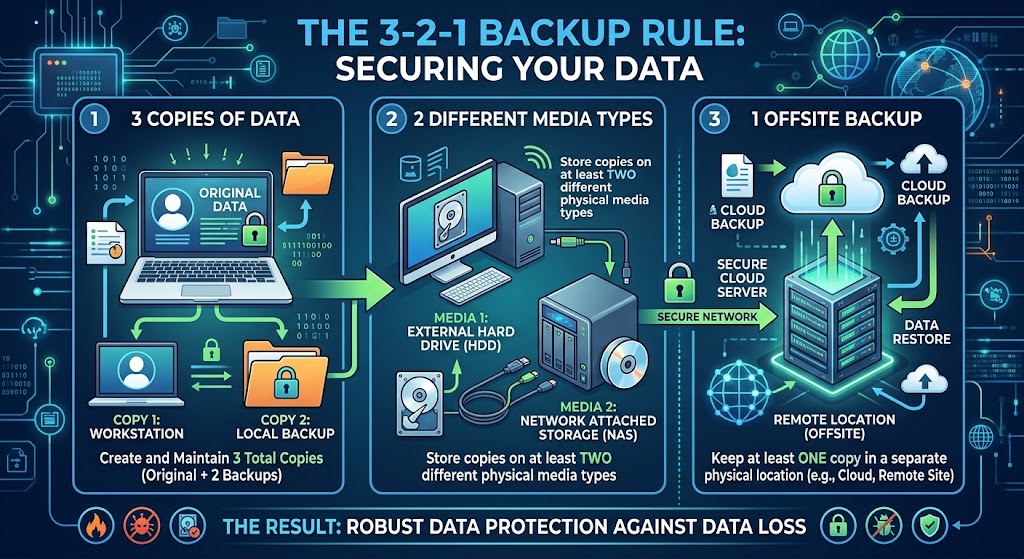
The 3-2-1 backup rule is a straightforward approach to reducing the risk of data loss. It recommends keeping three copies of your data, storing them on two different types of storage media, and keeping one copy off-site. Cloud services can make the off-site part easier, provided they are configured as genuine backups rather than simple file synchronization.
Learn the three stepsIn this guide, you will learn what the 3-2-1 backup rule means, how to implement it using cloud storage and backup services, and how to adapt the strategy for a home computer, small business or growing organization.
What Is the 3-2-1 Backup Rule?
The 3-2-1 backup rule is a data protection strategy designed to ensure that you have multiple ways to recover important information if one copy becomes unavailable.
Keep Three Copies
Maintain your original data and at least two additional copies. Multiple copies reduce dependence on a single device or storage location.
Use Two Storage Types
Keep copies on two different types of storage media, such as an internal drive and an external hard drive. The goal is to reduce shared failure risks.
Keep One Copy Off-Site
Store at least one backup in a separate physical location, such as a suitable cloud backup service or an external drive kept elsewhere.
For example, you could keep your working files on your computer, create a backup on an external drive, and send another backup to a cloud backup provider. If your laptop is stolen or a local incident damages your equipment, you still have another recovery option.
Why Is the 3-2-1 Backup Strategy Important?
Data loss does not always happen because a hard drive fails. A user might delete a folder accidentally, ransomware could encrypt files, or a compromised account might allow someone to remove important documents.
Relying on only one copy leaves you vulnerable to any incident that affects that copy. Keeping additional copies in different locations can reduce the chance that a single event destroys all available data.
- Hardware failure: Recover files when a computer or drive stops working.
- Human error: Restore documents that were accidentally deleted or overwritten.
- Ransomware: Recover from protected backup copies if production data is encrypted.
- Theft or physical damage: Access off-site copies when local equipment is lost.
- Business continuity: Reduce downtime after an incident.
- Long-term protection: Preserve important records according to your retention needs.
How to Apply the 3-2-1 Backup Rule in the Cloud
Cloud backup makes it possible to store copies away from your home or office. However, the cloud should be part of a broader strategy that also considers independent storage, account security and recovery testing.
Step 1: Identify the Data You Need to Protect
Start by listing your important files and systems. A personal user might need to protect photographs, documents and financial records. A business may need to protect customer files, accounting data, project folders, email archives, databases and application configurations.
Decide how much data you could afford to lose and how quickly you would need to recover it. These priorities help determine your backup frequency, retention period and storage requirements.
Step 2: Keep the Original Data on Your Main Device
Your computer, workstation or business server contains the working copy. Organize the data into clearly identified folders and check that important files are included in your protection plan.
Do not assume that every folder on your computer is automatically protected. Cloud synchronization applications and backup programs may cover different directories, file types and system components.
Step 3: Create a Local Backup on Separate Storage
Use an external hard drive, network-attached storage (NAS) device or another suitable local backup destination. Configure the backup software to copy the files you identified in the first step.
Where practical, disconnect the external drive after the backup finishes or use access controls that prevent ordinary computer accounts from modifying backup data. This helps reduce exposure to ransomware and accidental deletion.
Step 4: Send Another Backup to the Cloud
Choose a cloud backup service that supports your devices and recovery requirements. Configure automatic backups and confirm that the selected folders or systems are included.
Services such as Backblaze, IDrive, Acronis and other business backup providers offer different data protection options. Compare device limits, storage capacity, encryption, retention, recovery methods and pricing before selecting a plan.
Step 5: Protect Your Cloud Backup Account
An off-site backup is less useful if an attacker can delete it. Use multi-factor authentication, strong unique credentials and restricted administrative permissions. Where available and appropriate, consider immutable backups, object lock or separate backup credentials.
Step 6: Test Your Backups Regularly
A successful backup message does not prove that every file can be recovered. Restore a sample of files regularly, and periodically test a more complete recovery process for critical systems.
Document how to restore your data, who is authorized to do it and what information is needed if your main computer or account becomes unavailable.
Example of a 3-2-1 Cloud Backup Setup
Imagine a small business that stores 500 GB of accounting documents, customer files and project data. It wants to keep working during a device failure and recover from an incident that affects its office equipment.
| Copy | Location | Purpose | Protection |
|---|---|---|---|
| Copy 1 | Main workstation or file server | Daily work | Device security and access controls |
| Copy 2 | External hard drive or local backup device | Fast local recovery | Separate storage and restricted access |
| Copy 3 | Cloud backup destination | Off-site recovery | Protected account, retention and recovery controls |
In this example, the external drive and cloud destination provide two additional copies of the working data. The business should also confirm that the copies are genuinely separate and that its chosen services cover the required data.
The exact amount of cloud storage required will depend on the backup method, file changes, retention period, compression and any versioning options. A 500 GB working dataset does not necessarily mean the backup subscription will use exactly 500 GB.
Cloud Storage vs Cloud Backup: Which Counts as a Backup?
One common mistake is assuming that files in Google Drive, Dropbox or OneDrive automatically satisfy the off-site backup requirement. These services primarily provide cloud storage and synchronization, although they may also offer version history and recovery features.
If a file is deleted or encrypted and the change synchronizes, the affected version may also become unavailable in the cloud. Recovery depends on the service's retention policies and the protections configured for the account.
| Solution | Primary Function | What to Check |
|---|---|---|
| Google Drive | Cloud storage and collaboration | Version history, deletion recovery and account controls |
| Microsoft OneDrive | Cloud storage and synchronization | File recovery, retention and Microsoft 365 plan features |
| Dropbox | File synchronization and sharing | Version history, recovery windows and business protections |
| Dedicated cloud backup | Data protection and restoration | Backup coverage, isolation, retention and recovery testing |
A cloud storage service can contribute to a backup strategy if it is configured to preserve independent, recoverable copies and meets your recovery requirements. Do not count a synchronized copy as an independent backup without checking how deletion, encryption and account compromise affect it.
Best Cloud Backup Services to Consider
Backblaze
A provider worth evaluating for computer backup and off-site data protection. Check device coverage, version retention and restoration options.
Visit BackblazeIDrive
Offers backup options for supported computers and other devices. Review storage limits, device allowances and retention terms.
Visit IDriveAcronis
Provides backup and recovery products for personal and business environments, with capabilities that depend on the chosen edition.
Visit AcronisWhen choosing a provider, look beyond the advertised storage allowance. Confirm which devices and applications are supported, whether backups can be protected against deletion, how long versions are retained, and what happens if you need to restore a large volume of data.
What Is the 3-2-1-1-0 Backup Rule?
Some organizations extend the traditional 3-2-1 rule to the 3-2-1-1-0 backup rule. This adds two additional goals:
- One offline or immutable copy: Keep at least one copy isolated from routine changes or protected against modification and deletion.
- Zero backup errors: Verify backups and conduct recovery tests so failures are detected and corrected.
An offline backup is disconnected from accessible systems. An immutable backup is protected from alteration or deletion for a defined period, subject to its configuration and security model. These approaches help protect against attackers who gain access to ordinary user or administrator accounts.
The expanded rule is particularly useful for businesses with strict recovery requirements, but it does not eliminate the need for access controls, monitoring, incident response planning and tested restoration procedures.
How Often Should You Back Up Your Data?
Backup frequency should reflect how much recent work you can afford to lose. A home user who mainly stores personal photographs may have different needs from a business that processes customer transactions every hour.
| Data Type | Example Starting Point | Important Consideration |
|---|---|---|
| Personal documents | Daily or after significant changes | Make sure new files are included |
| Photographs and videos | Automatic backup when new files are added | Check capacity and upload completion |
| Small business documents | Daily or more frequently when needed | Consider retention and downtime costs |
| Critical databases | Based on recovery objectives; potentially frequent or continuous | Application consistency and transaction recovery |
These are starting points, not universal requirements. Define your recovery point objective (RPO), which describes how much data loss in time is acceptable, and your recovery time objective (RTO), which describes how quickly systems should be restored.
Common 3-2-1 Backup Mistakes to Avoid
- Keeping every copy in one location: A local disaster could affect all copies.
- Confusing synchronization with backup: Synchronized deletion can propagate across devices.
- Leaving backup drives connected permanently: This may expose them to malware or unauthorized changes.
- Using the same credentials everywhere: A compromised account could expose multiple copies.
- Ignoring retention periods: Deleted or corrupted data may become unrecoverable after retention expires.
- Never testing restoration: An incomplete or unusable backup may go unnoticed until an emergency.
- Forgetting applications and configurations: File copies alone may not restore an entire working system.
- Failing to monitor backup jobs: Connection errors, insufficient capacity or permission changes can interrupt protection.
3-2-1 Backup Implementation Checklist
Use this interactive checklist to assess whether you have covered the main elements of a practical backup strategy.
0 of 9 completed
Frequently Asked Questions
What does the 3-2-1 backup rule mean?
It means keeping three copies of your data, using two different types of storage media, and storing one copy off-site. The goal is to reduce the risk that one failure or incident destroys every copy.
Does cloud storage count as an off-site backup?
It can contribute to off-site protection, but synchronization alone does not guarantee an independent backup. Verify that your cloud setup preserves recoverable copies and protects them from the same deletion, ransomware and account risks affecting your original data.
Is an external hard drive enough for backup?
An external hard drive can provide a useful local backup, but it may be lost, damaged, stolen or affected by malware if it remains connected. Combining it with an appropriately protected off-site copy provides more resilience.
Is the 3-2-1 rule still relevant for cloud-first businesses?
Yes. Cloud-first businesses still need independent, recoverable copies of important data. The implementation may use cloud-to-cloud backup, a separate backup account, immutable storage or offline copies, depending on the risks and recovery requirements.
What is the difference between the 3-2-1 and 3-2-1-1-0 rules?
The 3-2-1-1-0 approach adds one offline or immutable copy and a goal of zero backup errors through verification and recovery testing.
How long should cloud backups be retained?
Retention depends on how far back you may need to recover data, storage costs, legal obligations and business requirements. Set a policy that preserves the necessary history and test that it supports your recovery objectives.
Can the 3-2-1 backup rule protect against ransomware?
It can substantially improve recovery options, particularly when at least one copy is isolated or immutable and credentials are protected. It cannot guarantee prevention or recovery in every incident, so combine backups with endpoint protection, access controls and incident response planning.
Final Verdict: Build a Reliable Cloud Backup Strategy
The 3-2-1 backup rule remains a practical foundation for protecting personal files and business data. Keep three copies, use two storage types and make sure one copy is off-site.
To strengthen the strategy, protect backup credentials, consider an offline or immutable copy, monitor backup jobs and test restoration regularly. Cloud backup can make off-site protection convenient, but only a carefully configured and tested process provides meaningful confidence that your data can be recovered.
Explore cloud backup options Compare backup solutionsDisclaimer: This guide provides general information, not a guarantee of data recovery or a substitute for a business-specific disaster recovery assessment. Confirm provider features, retention policies and pricing before choosing a solution.